Employee Pension Application System
User Manual - Frontend Application
Khyber Pakhtunkhwa Elementary & Secondary Education Department
Version: 1.0
Date: December 2024
1. Introduction
The Employee Pension Application System allows employees to submit their pension applications online, track the status of their applications, and update required documents as needed. This manual will guide you through each step of the process.
What You Need
Before starting, ensure you have:
- Your CNIC (Computerized National Identity Card) number
- Your EMIS (Education Management Information System) password
- All required documents scanned and ready (PDF, JPG, JPEG, or PNG format)
- Each document should be less than 500KB in size
Required Documents
You will need to upload the following documents:
- CNIC Front - Scanned copy of the front side of your CNIC
- CNIC Back - Scanned copy of the back side of your CNIC
- Last Pay Certificate (LPC) - Your most recent pay certificate
- Leave account Performa issued by DDO - Leave account statement from DDO
- Appointment Letter - Your original appointment letter
- Verified Service Book - Verified copy of your service book
- Service Certificate - Certificate of service
- SSC Certificate (for DOB) - Secondary School Certificate showing date of birth
- No Demand / Non-Involvement Certificate - Certificate showing no pending demands
- Promotion Order (if any) - Optional: Any promotion orders you have received
- Audit Performa to be issued by DDO - Audit performa from DDO
- Leave admissibility report from account office - Report from account office
You must upload all 11 required documents (excluding the optional Promotion Order) before you can submit your application.
3. Submitting a New Application
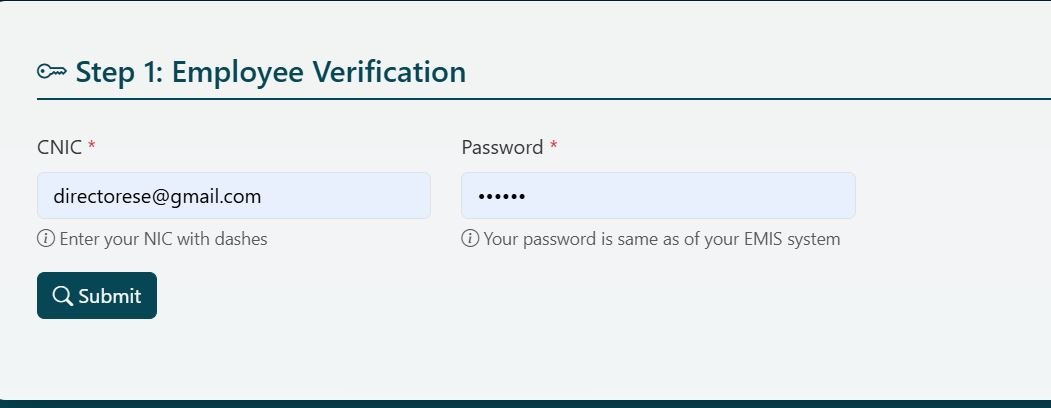
Step 1: Employee Verification
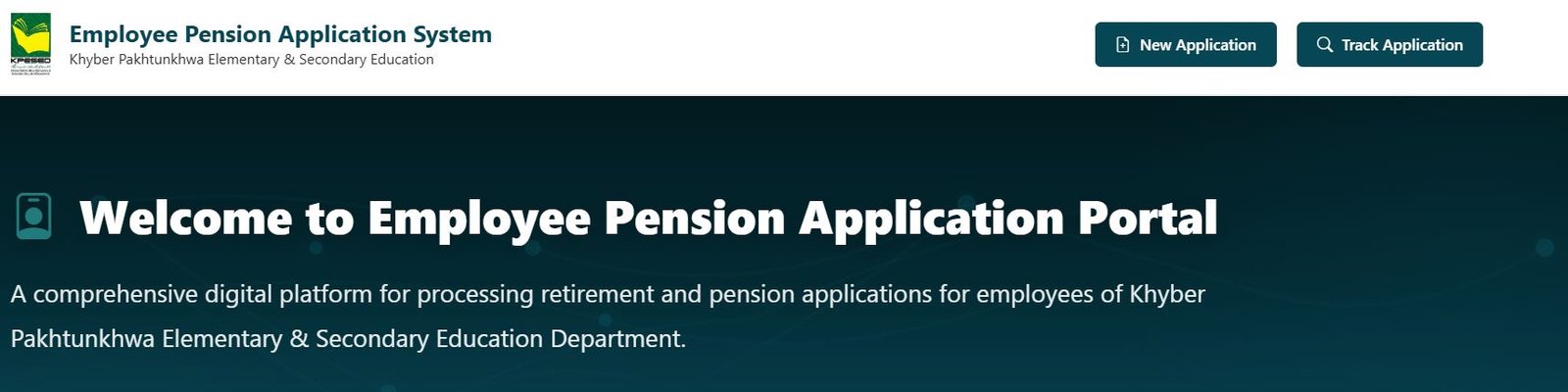
- Click on "New Application" button from the homepage
- You will see a form with Step 1: Employee Verification
- Enter your details:
- Click the "Submit" button
- The system will verify your information from the EMIS database
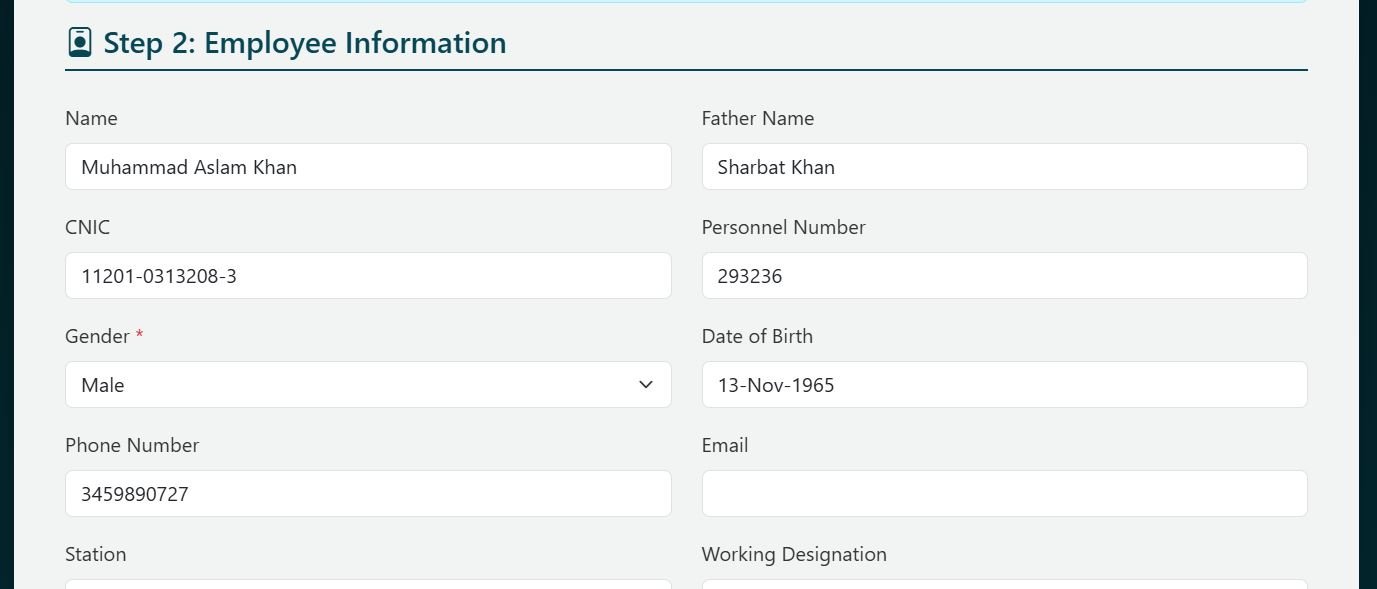
- If successful, your employee information will be automatically filled in
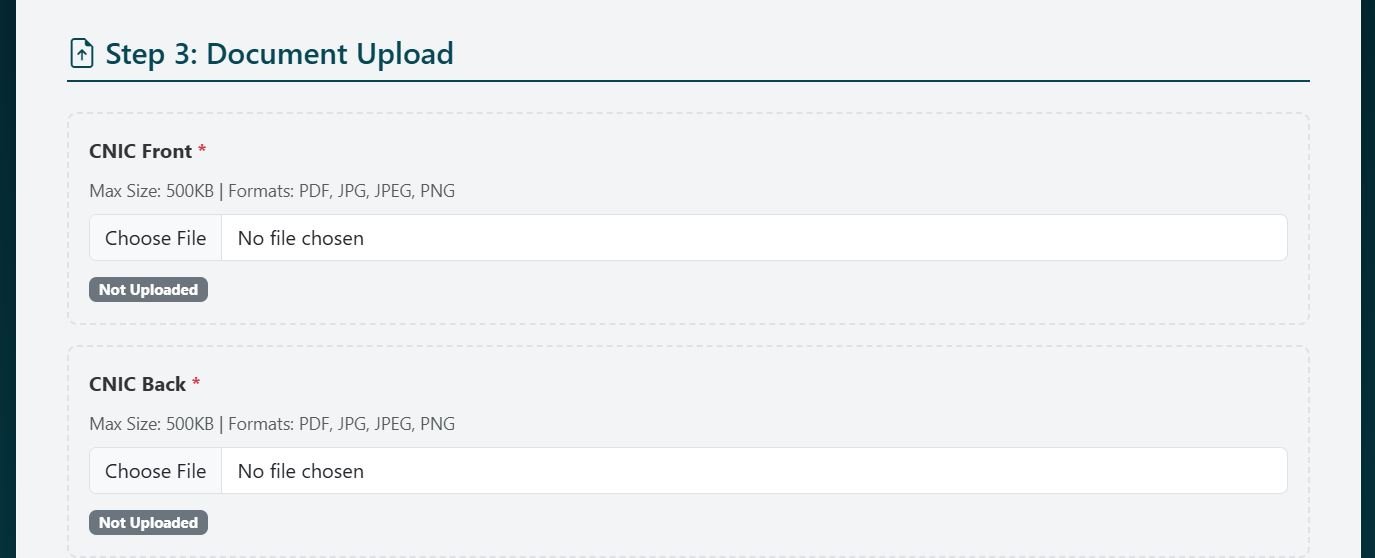
Step 2: Document Upload
Uploading Documents
For each required document:
- Click the "Choose File" or "Browse" button next to the document name
- Select the file from your computer
- The file must be:
- Format: PDF, JPG, JPEG, or PNG
- Size: Maximum 500KB
- After selecting, you will see:
- A preview of the document (for images) or a PDF icon (for PDFs)
- A status badge showing "Uploaded"
- The document will be marked as checked in the checklist
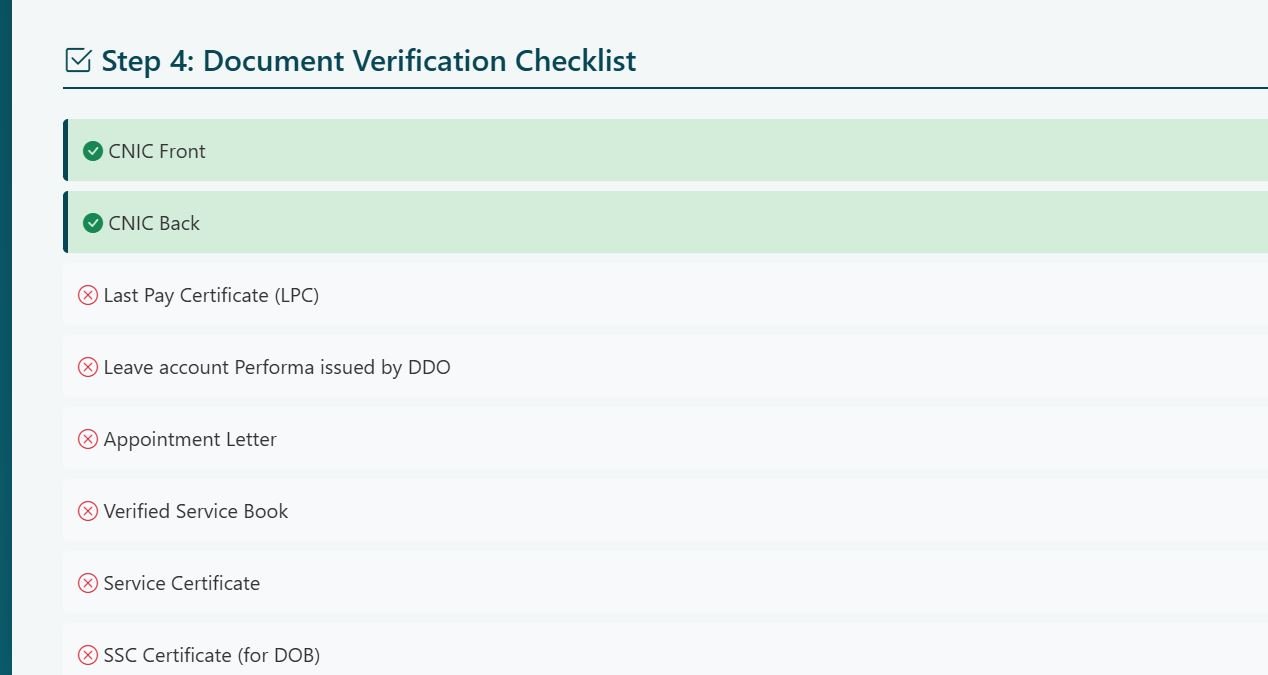
Document Checklist
you will see a checklist showing all documents:
- ✓ (Green checkmark) - Document uploaded
- ✗ (Red X) - Document not uploaded
- ⚠ (Yellow warning) - Optional document
You must upload all 11 required documents (excluding the optional Promotion Order) before you can submit the application.
Step 3: Document Verification Checklist
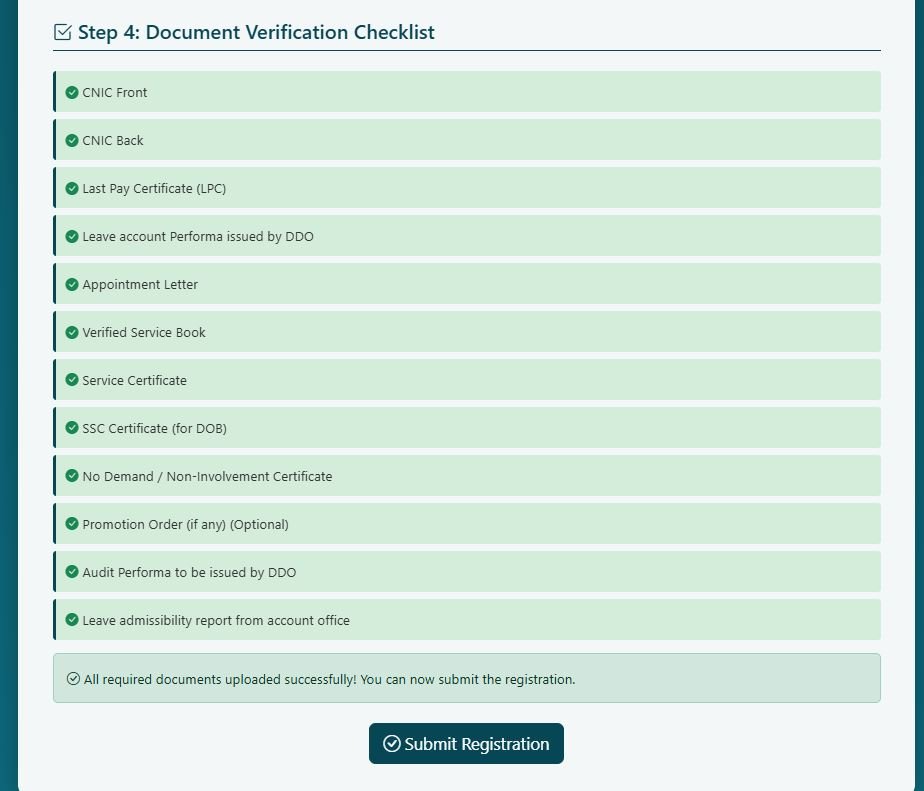
After uploading documents, review the Step 4: Document Verification Checklist:
- All required documents should show a green checkmark (✓)
- The alert message will show: "All required documents uploaded successfully! You can now submit the registration."
- The "Submit Registration" button will be enabled
Step 4: Submit Application
- Review all your information and documents
- Click the "Submit Registration" button
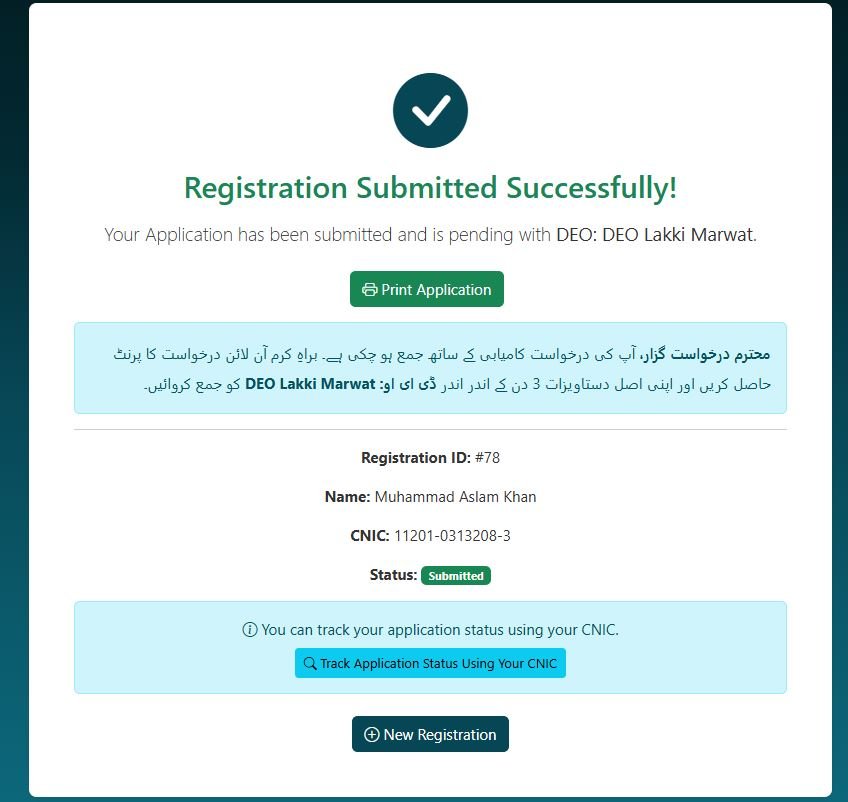
- You will see a confirmation message
- Take a print of your application using Print Application you will need this to submit with hard copies of documents, Save as PDF if printer is not available
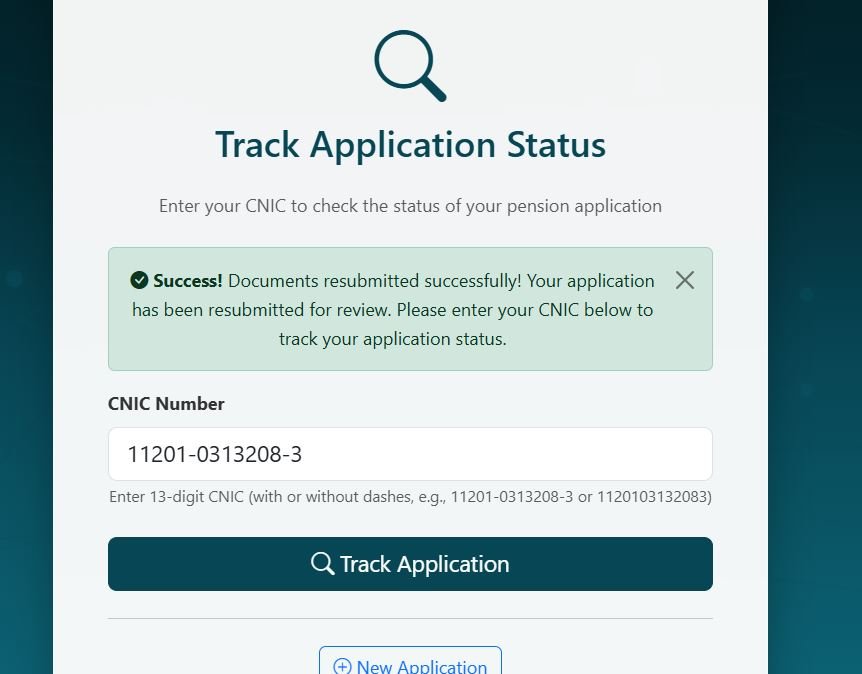
4. Tracking Your Application
Accessing the Track Page
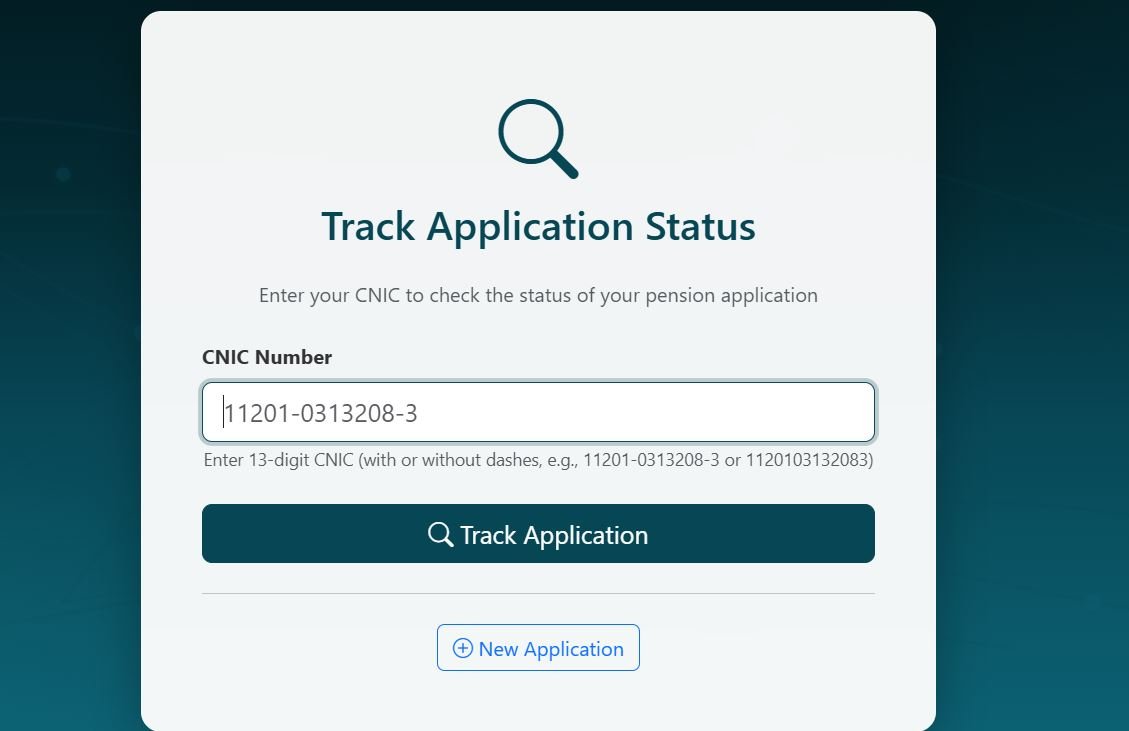
- From the homepage, click the "Track Application" button
- You will see a form asking for:
- CNIC: Enter your CNIC number with dashes
Viewing Application Status
- Enter your CNIC
- Click "Track Application" button
- You will see detailed information about your application
Application Details
- Name
- CNIC
- Personnel Number
- Submission Date
- Current Status
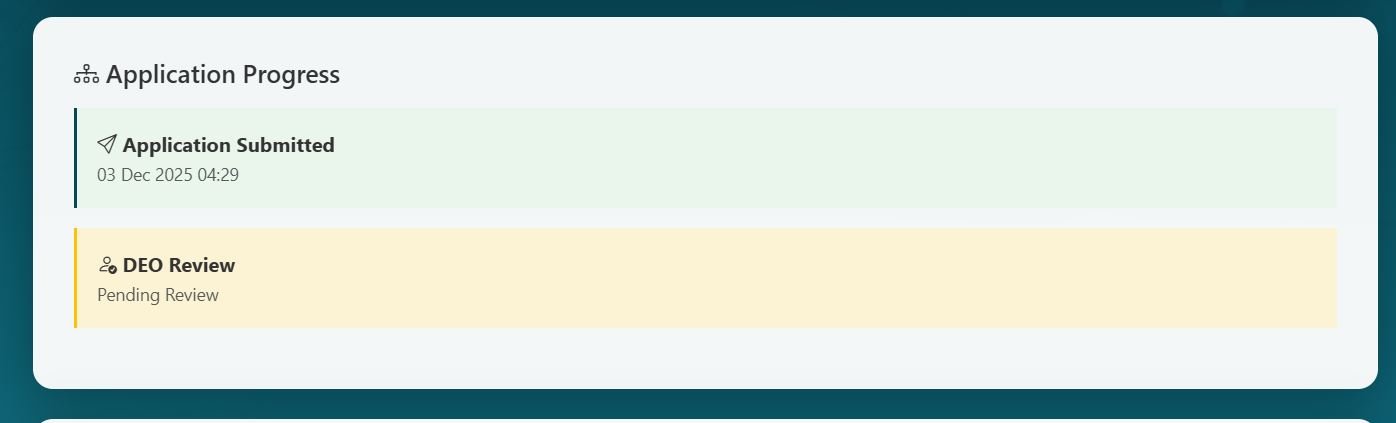
Application Progress
The progress section shows the process stages:
Each stage will show:
- Status (Pending, Approved, Returned)
- Date when action was taken
- Officer remarks (if any)
Document Status
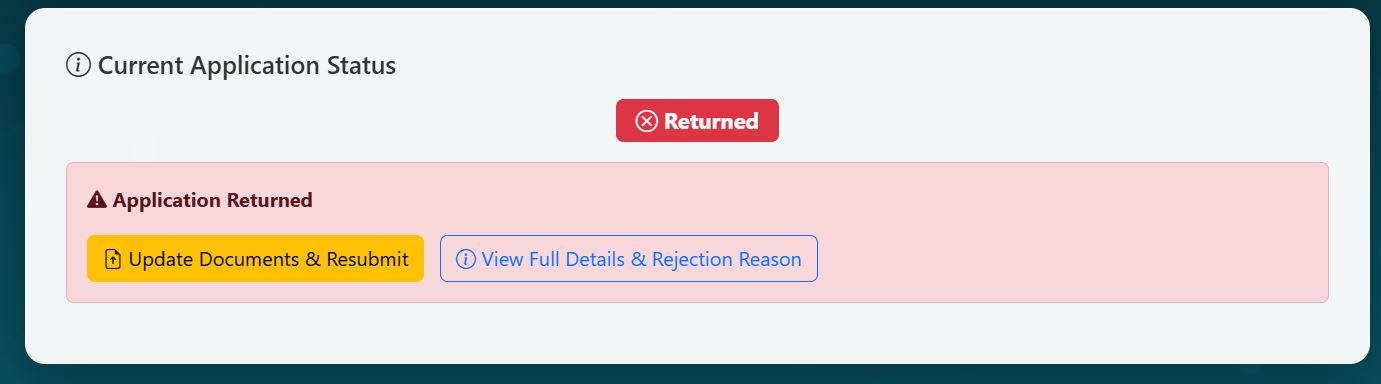
- If your application is Returned, you will see the reason and can update documents
- If your application is Approved, you will see the approval date and next steps
- If your application is Pending, check back regularly for updates
5. Updating Documents
When to Update Documents
You may need to update documents if:
- Your application was returned with a request for document updates
- You uploaded an incorrect document
- You need to replace a document with a better quality version
Accessing the Update Documents Page
Option 1: From Returned Application
- If your application was returned, you will see a message when tracking
- Click on "Update Documents & Resubmit" button
- You will be redirected to the update documents page
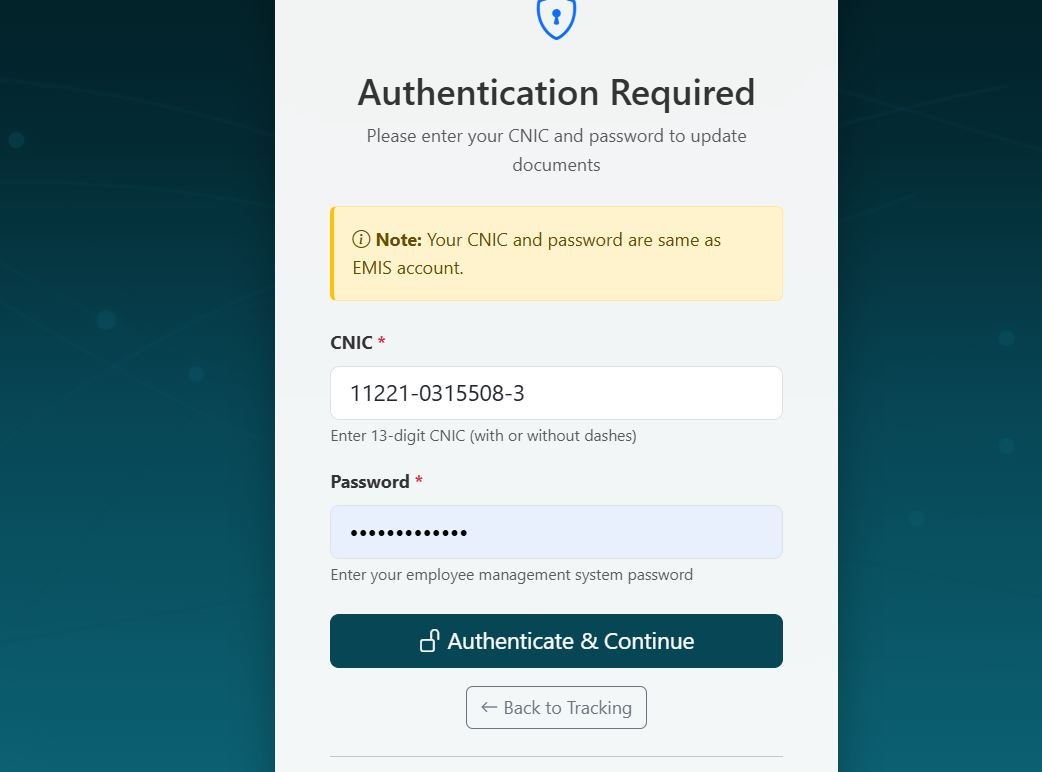
Authenticate to update document
- Enter your details:
- Click the " Authenticate & Continue" button
Updating Documents
- View Current Documents:
- You can view your currently uploaded documents
- Click the eye icon to view or download icon to download
- Upload New Documents:
- For each document you want to update, click "Choose File" button
- Select the new document
- The new document will replace the old one
- You can update one or multiple documents at once
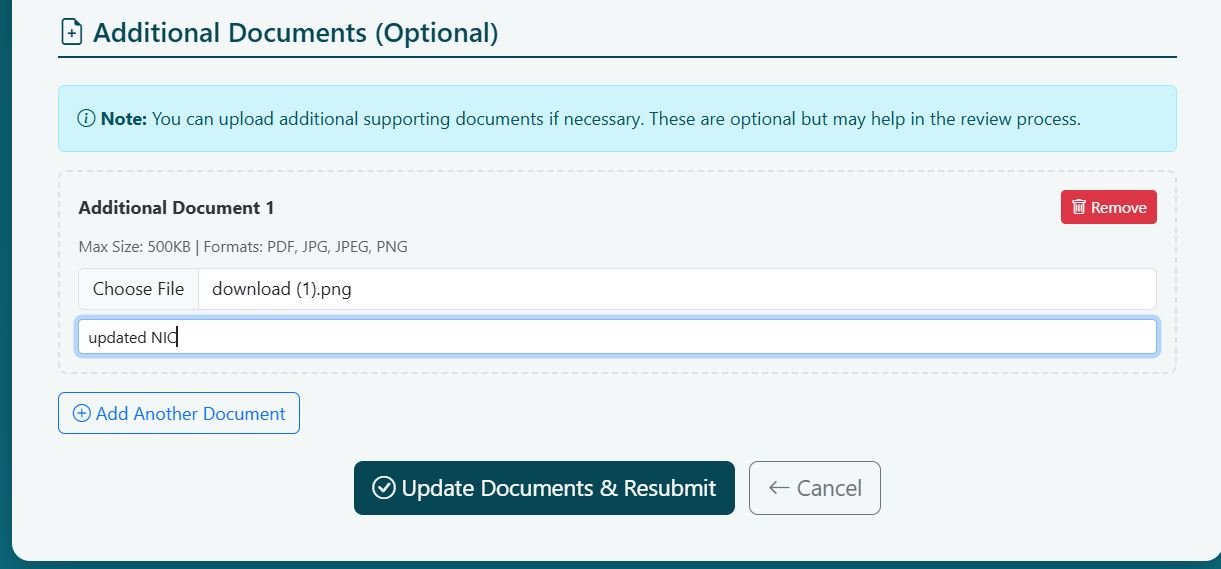
- Additional Documents (Optional):
- You can add additional documents if needed
- Click "Add Document" button
- Enter document name
- Upload the file
- Add remarks if needed
- Submit Updates:
- After making all necessary updates
- Review the changes
- Click "Update Documents" button
- You will see a confirmation message
- File Requirements: Same as initial upload (PDF, JPG, JPEG, PNG, max 500KB)
- Verification: Updated documents will need to be verified again by officers
- Status: Your application status will change to "Pending" after document updates
6. Troubleshooting
Common Issues and Solutions
Issue 1: Cannot Verify Employee Information
Problem: The system shows an error when trying to verify your CNIC and password.
Solutions:
- Double-check your CNIC format (must include dashes: 11201-0313208-3)
- Verify you are using your EMIS system password (not your personal password)
- Ensure your CNIC and password are correct in the EMIS system
- Contact your school administration if you cannot access your EMIS account
Issue 2: File Upload Fails
Problem: Cannot upload a document file.
Solutions:
- Check file size (must be less than 500KB)
- Check file format (must be PDF, JPG, JPEG, or PNG)
- Try compressing the image if it's too large
- Convert the file to PDF if it's in an unsupported format
- Clear your browser cache and try again
Issue 3: Cannot Submit Application
Problem: The "Submit Registration" button is disabled.
Solutions:
- Check the document checklist - all 11 required documents must be uploaded
- Look for any red X marks (✗) in the checklist
- Upload any missing required documents
- Refresh the page and check again
Issue 4: Cannot Track Application
Problem: Cannot find application when tracking.
Solutions:
- Verify you entered the correct CNIC (with dashes)
- Verify you entered the correct Application ID
- Check if you saved the Application ID correctly
- Contact support if you lost your Application ID
Issue 5: Application Status Not Updating
Problem: Application status shows as "Pending" for a long time.
Solutions:
- This is normal - applications go through multiple review stages
- Each stage may take several days
- Check back regularly for updates
- Contact the relevant officer if status doesn't change for an extended period
Browser Compatibility
The system works best with:
- Google Chrome (Recommended)
- Mozilla Firefox
- Microsoft Edge
- Safari (for Mac users)